> ## Documentation Index
> Fetch the complete documentation index at: https://docs.abbyy.com/llms.txt
> Use this file to discover all available pages before exploring further.
# Configure LLM connections
> Set up LLM connections in ABBYY Vantage to integrate Anthropic, Google AI Studio (Gemini), Microsoft Foundry, Mistral AI, OpenAI, and any OpenAI-compatible endpoint you host yourself for AI-powered document extraction.
An **LLM connection** stores the tenant-level credentials that link ABBYY Vantage to an external LLM provider. After it is configured, a connection is shared across your tenant, and any Document Skill can use it for prompt-based extraction and classification.
LLM connections can currently be used in Document Skills through ABBYY Advanced Designer only. Connections are managed at the tenant level and are available to all skill designers in your organization.
For a conceptual overview and the full list of supported providers, see [LLMs in ABBYY Vantage](/vantage/documentation/llms/llms) and [Supported LLM providers and models](/vantage/documentation/llms/supported-providers-models).
## Prerequisites
Before you begin, make sure you have the following.
* **Administrator access** to ABBYY Vantage Configuration.
* **An active subscription** with your chosen LLM provider, or an OpenAI-compatible endpoint you host or control.
* **Connection details** for that provider or endpoint:
* **Anthropic** - API key from your Anthropic account.
* **Google AI Studio** - API key from your Google AI Studio account.
* **Microsoft Foundry** - Azure API key, the complete endpoint URL (including the `/chat/completions` path and API version), and the deployed model name from Azure.
* **Mistral AI** - API key from your Mistral AI account.
* **OpenAI** - API key from your OpenAI account.
* **Custom (OpenAI-Compatible)** - API key, the base URL of your endpoint, and the model name your endpoint serves. The endpoint must be reachable from your ABBYY Vantage deployment.
These prerequisites apply to connections you configure yourself. The **ABBYY Phoenix Model** connection requires none of them: ABBYY provides the subscription and the credentials. See [ABBYY-managed connections](#abbyy-managed-connections).
## Add an LLM connection
In the left sidebar, under **ADMIN**, click **Configuration** (gear icon), and then click **Connections**.
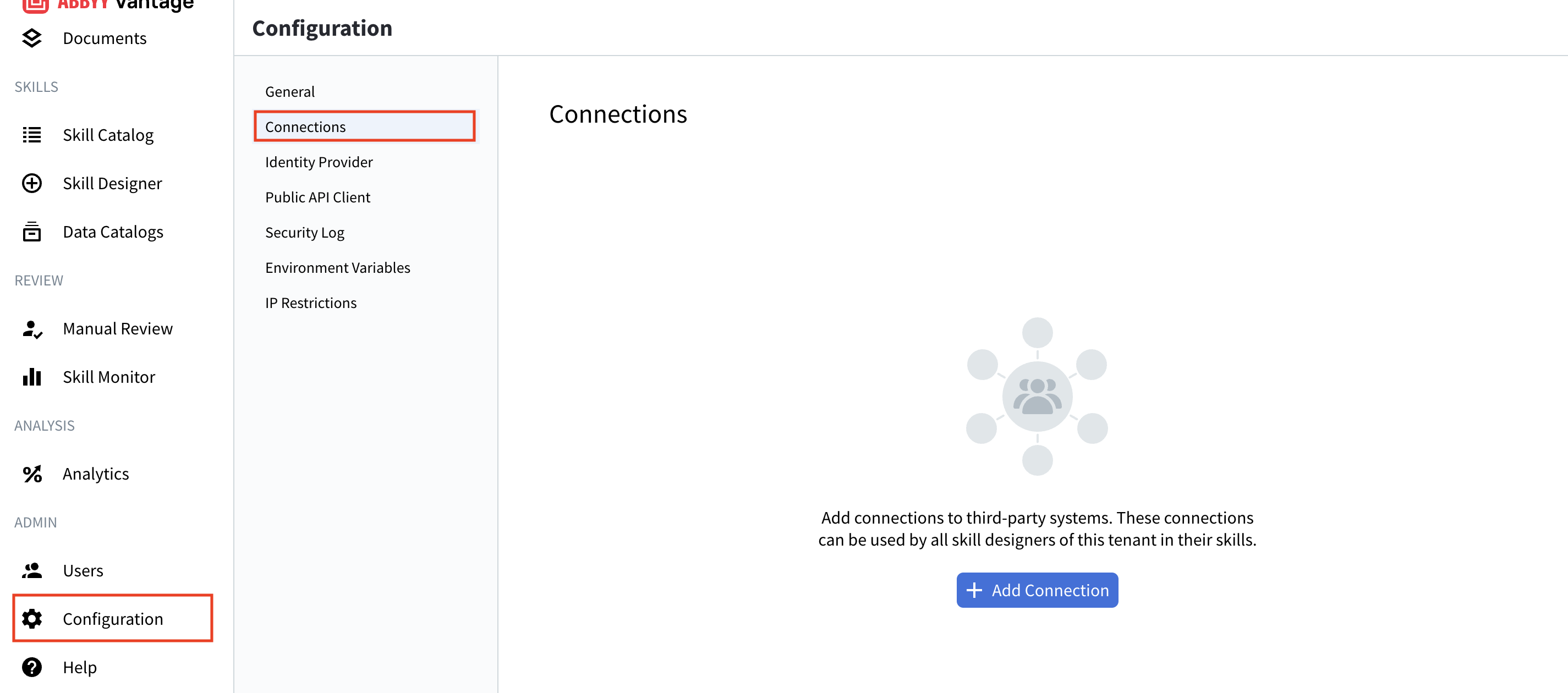 The **Connections** page lists any existing connections with their **Name**, **Description**, **Used in Skills**, and **Last Updated** values, along with **Add Connection**, **Test**, **Edit**, and **Delete** buttons.
Click **+ Add Connection**. The **Add Connection** dialog lists the available providers: **Anthropic**, **Microsoft Foundry**, **Google AI Studio**, **Mistral AI**, **OpenAI**, and **Custom (OpenAI-Compatible)**.
The **Connections** page lists any existing connections with their **Name**, **Description**, **Used in Skills**, and **Last Updated** values, along with **Add Connection**, **Test**, **Edit**, and **Delete** buttons.
Click **+ Add Connection**. The **Add Connection** dialog lists the available providers: **Anthropic**, **Microsoft Foundry**, **Google AI Studio**, **Mistral AI**, **OpenAI**, and **Custom (OpenAI-Compatible)**.
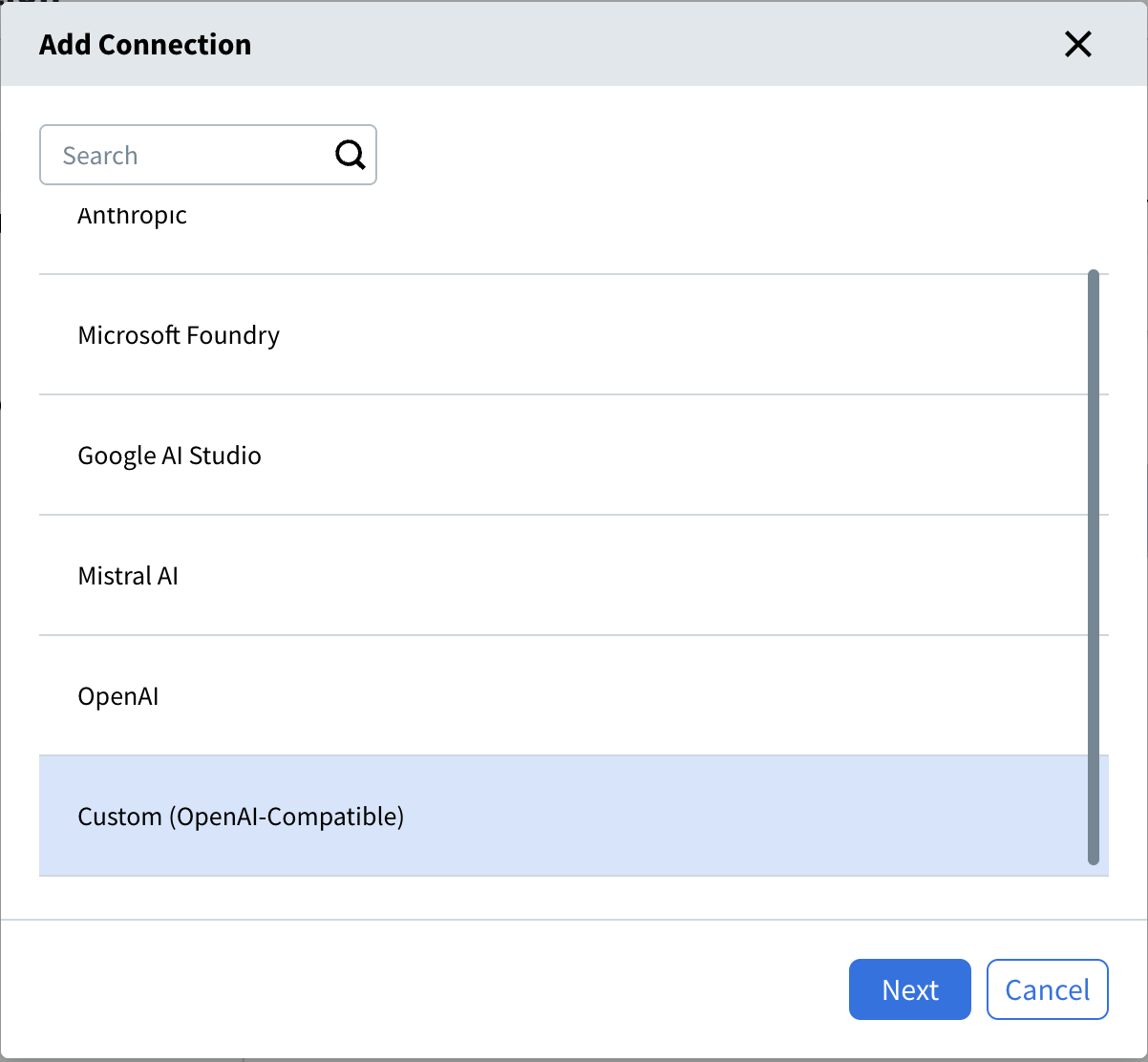 Select the provider that matches your subscription, and then click **Next**.
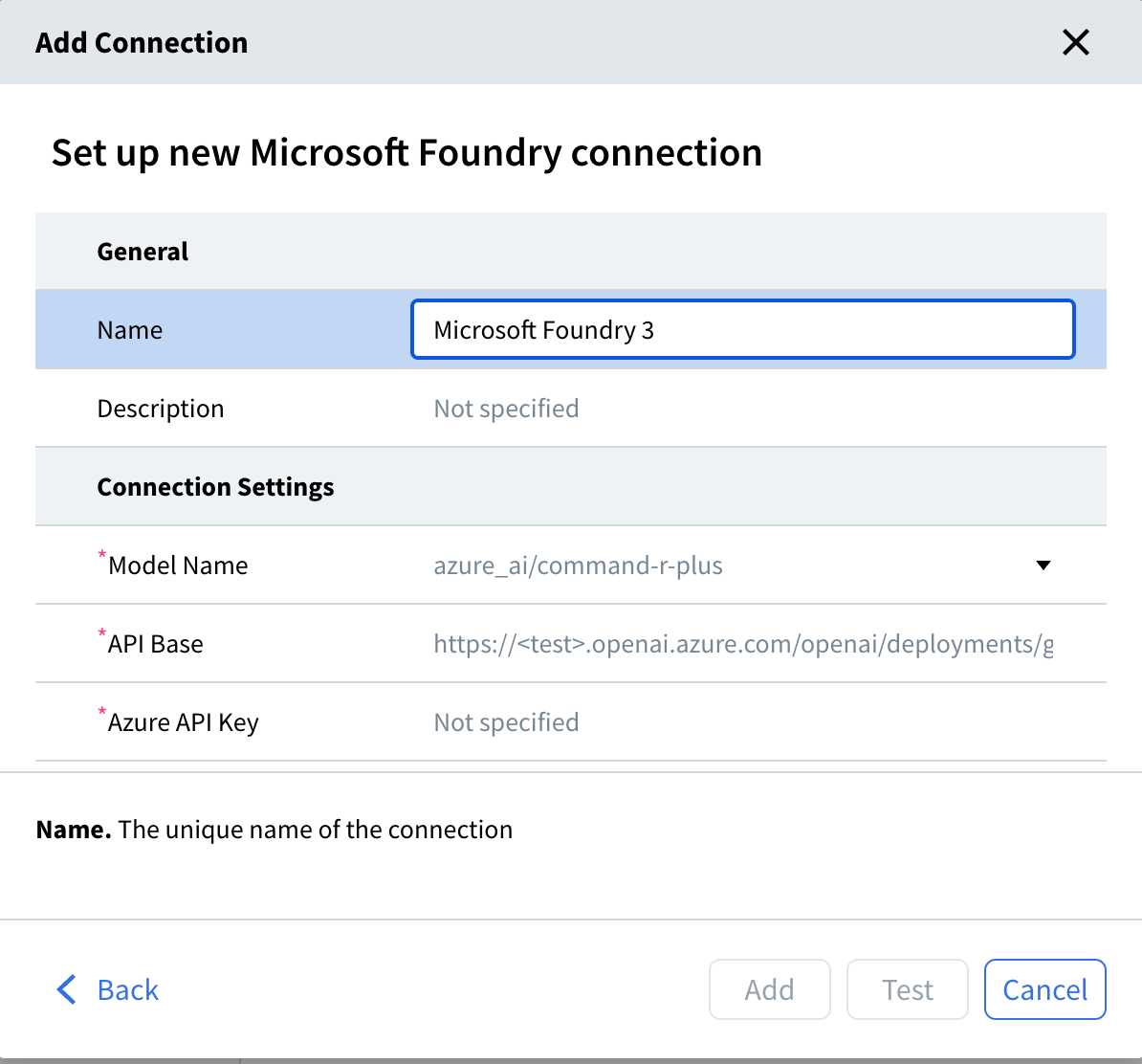
Give the connection a name and an optional description.
* **Name** - A unique name for the connection. This name appears when skill designers select a connection in a Document Skill, so choose something descriptive, such as `Production Claude` or `Mistral AI`.
* **Description** - Optional context about the connection's purpose or environment. Don't include API keys or other credentials.
Enter the credentials for your provider. The required fields depend on the provider you selected. For the fields per provider, see [Connection settings by provider](#connection-settings-by-provider).
Select the provider that matches your subscription, and then click **Next**.
Give the connection a name and an optional description.
* **Name** - A unique name for the connection. This name appears when skill designers select a connection in a Document Skill, so choose something descriptive, such as `Production Claude` or `Mistral AI`.
* **Description** - Optional context about the connection's purpose or environment. Don't include API keys or other credentials.
Enter the credentials for your provider. The required fields depend on the provider you selected. For the fields per provider, see [Connection settings by provider](#connection-settings-by-provider).
 Click **Test**. Vantage attempts to reach the provider with the credentials you entered.
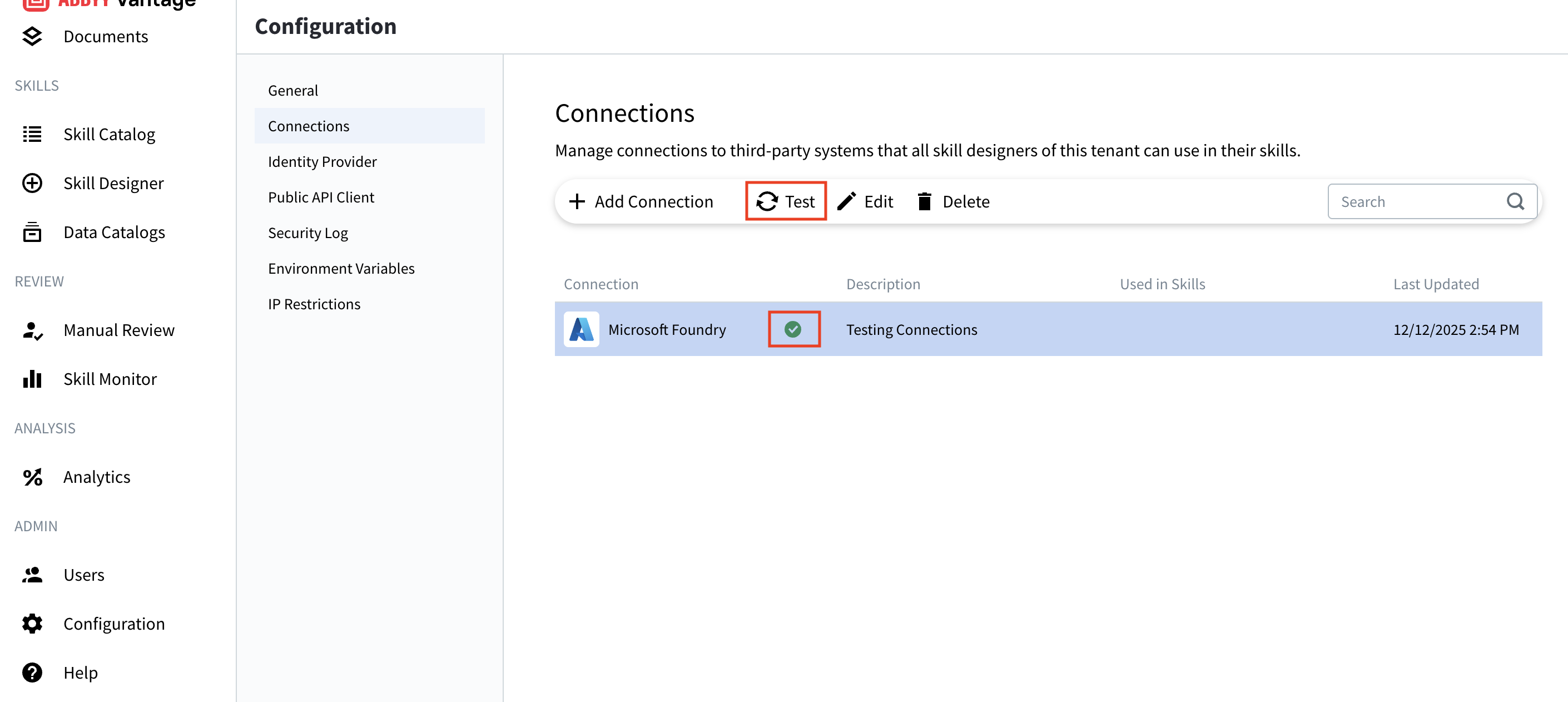 A green checkmark confirms the connection works. A red error means the credentials or settings need attention. For help, see [Troubleshooting](#troubleshooting).
After the test succeeds, click **Add**. The connection appears in the **Connections** list and is immediately available to all skill designers in your tenant.
After a skill that references this connection is published, the connection becomes the **default** in the Vantage Web Portal, under **Skill Catalog → \[skill] → Parameters**. A tenant administrator can override the default per environment without republishing the skill. For more information, see [Document skill parameters](/vantage/documentation/skill-designer/skill-parameters/document-skill-params).
## Connection settings by provider
The **Connection Settings** fields differ by provider. Enter the exact model name your account supports. For example models, see [Supported LLM providers and models](/vantage/documentation/llms/supported-providers-models).
Never share API keys or include them in a connection's description. These credentials grant access to your LLM services and the associated costs.
### Anthropic
* **Model Name** - The Anthropic model to use. Select the model your account supports.
* **API Key** - Your Anthropic API key (starts with `sk-`).
The form also has an **Optional** section. Leave the field empty unless your account needs it.
* **Upstream API Base** - A base URL to send requests to instead of Anthropic's default, `https://api.anthropic.com`.
### Google AI Studio (Gemini)
* **Model Name** - The Gemini model to use, for example `gemini-2.0-flash`.
* **API Key** - Your Google AI Studio API key, from **Google AI Studio → Get API key**.
The form also has an **Optional** section. Leave the field empty unless your account needs it.
* **API Base** - A base URL to send requests to instead of Google's default, `https://generativelanguage.googleapis.com/v1beta`.
### Microsoft Foundry
* **Model Name** - The name of your deployed model in Microsoft Foundry, from **Azure Portal → your Microsoft Foundry resource → Deployments**. Enter the bare deployment name, matching the deployment exactly.
* **API Base** - Your Microsoft Foundry endpoint, from **Azure Portal → your Microsoft Foundry resource → Keys and Endpoint**. Include the deployment path and API version, for example `https://.cognitiveservices.azure.com/openai/deployments//chat/completions?api-version=2025-01-01-preview`.
* **Azure API Key** - Your Microsoft Foundry API key, from the same **Keys and Endpoint** page.
The **Model Name** dropdown lists a generic model catalog rather than your own Azure deployments, so it can offer models you have not deployed. Ignore the list and type your deployment name. The placeholder text shows a prefixed form such as `azure_ai/command-r-plus`; do not include a prefix.
### Mistral AI
* **Model Name** - The Mistral AI model to use. Select the model your account supports.
* **API Key** - Your Mistral AI API key.
### OpenAI
* **Model Name** - The OpenAI model to use, for example `gpt-5.6`.
* **OpenAI API Key** - Your OpenAI API key (starts with `sk-`), from **OpenAI Platform → API Keys**.
The form also has an **Optional** section. Leave both fields empty unless your account needs them.
* **API Base** - A base URL to send requests to instead of OpenAI's default, `https://api.openai.com/v1`.
* **OpenAI Organization ID** - The OpenAI organization to attribute the usage to, from your OpenAI organization settings. Set this only if your account belongs to more than one organization.
### Custom (OpenAI-Compatible)
Use this option for an endpoint you host or control that implements the OpenAI chat completions API.
* **Model Name** - The model your endpoint serves, for example `mistral-large-2411`. Vantage does not suggest models for this option, so type the name exactly as your endpoint exposes it.
* **API Base** - The base URL of your endpoint, for example `https://my-llm.example.com/v1`. Enter an absolute `http` or `https` URL.
* **API Key** - The key your endpoint accepts. Vantage sends it as a bearer token.
Vantage checks that **API Base** is present and is an absolute `http` or `https` URL, and rejects the connection otherwise. It does not check the address itself when you save. An endpoint your Vantage deployment cannot reach saves without error and fails when you click **Test**.
## ABBYY-managed connections
Not every connection in the list is one you created. If your tenant has the **ABBYY Phoenix Plus** entitlement, a connection named **ABBYY Phoenix Model** appears alongside your own, shown with a padlock icon and the description **Managed by ABBYY. Provides access to the ABBYY Phoenix model.**
ABBYY provisions it automatically when the entitlement is enabled, and it uses credentials ABBYY owns and operates. There is nothing to configure: no API key, no endpoint URL, and no model name. For what ABBYY Phoenix Plus is and how to obtain it, see [LLMs in ABBYY Vantage](/vantage/documentation/llms/llms).
| Action | ABBYY-managed connection |
| :- | :- |
| Select it in a skill | Yes, the same as any other connection |
| Test it | Yes |
| View its credentials | No. Secrets are never returned, not even masked |
| Edit it | No. **Edit** is disabled, and the API refuses the change |
| Delete it | No. **Delete** is disabled, and the API refuses the change |
| Create one yourself | No. A connection claiming to be ABBYY-managed is rejected |
The connection exists for as long as the entitlement does. If ABBYY Phoenix Plus is turned off for your tenant, the connection is removed and any skill still pointing at it stops working. Your ABBYY account team manages the entitlement, so this should not arrive unannounced, but it is worth knowing when you build a skill around it.
Usage of the ABBYY Phoenix Model connection is metered by ABBYY against your entitlement. It is not billed by an external provider, so it does not appear in any provider dashboard. For consumption figures, contact your ABBYY account team.
## Manage connections
Connections are shared, so a change affects every skill that uses them. Test after any change.
### Edit a connection
On the **Connections** page, select the connection, and then click **Edit** (pencil icon).
Update the fields, click **Test** to confirm the connection still works, and then click **Save**.
An ABBYY-managed connection cannot be edited. **Edit** is disabled for it, with the tooltip "This connection is managed by ABBYY and cannot be edited or deleted", and the change is refused if attempted through the API. See [ABBYY-managed connections](#abbyy-managed-connections).
### Test a connection
On the **Connections** page, select the connection, and then click **Test** (refresh icon) to verify the credentials still work. This is useful for routine checks and troubleshooting.
### Delete a connection
On the **Connections** page, select the connection, click **Delete** (trash icon), and then confirm.
You can't delete a connection that is used in an active skill. Remove the connection from all skills first.
An ABBYY-managed connection cannot be deleted. It is removed automatically if the entitlement behind it is turned off.
## Troubleshooting
### The connection test fails
Check the credentials and settings for the provider.
* **Invalid API key** - Confirm you copied the entire key, with no extra spaces. Regenerate the key in the provider's portal if needed.
* **Invalid endpoint URL** - For **Microsoft Foundry**, confirm the **API Base** is complete, matches your Azure resource, and has no typos in the deployment path. For **Custom (OpenAI-Compatible)**, confirm the **API Base** is absolute, uses `http` or `https`, and is reachable from your ABBYY Vantage deployment.
* **Wrong model name** - Confirm the model or deployment exists and is active, and check spelling and capitalization (case-sensitive).
* **Network issues** - Confirm outbound HTTPS is allowed and your Vantage instance can reach the provider.
* **Quota or permissions** - Confirm your subscription is active, you're within rate limits, and the key has the necessary permissions.
### The connection works in the test but fails in a skill
* Refresh the Skill Designer page, and re-select the connection in the skill.
* Confirm the skill is published, not in draft.
* Check the skill's error logs for specific messages.
### Edit and Delete are greyed out for a connection
Hovering over **Edit** or **Delete** shows "This connection is managed by ABBYY and cannot be edited or deleted". ABBYY owns the credentials behind that connection, so it is read-only to your tenant. **Test** still works, and the connection can be selected in skills normally. See [ABBYY-managed connections](#abbyy-managed-connections).
### The ABBYY Phoenix Model connection is no longer listed
The connection exists only while your tenant holds the ABBYY Phoenix Plus entitlement. If it has disappeared, the entitlement is no longer active, and skills that used it will fail on their next run. Contact your ABBYY account team.
### API costs are higher than expected
* Review which skills use the connection, and their processing volume.
* Use smaller, faster models for simple tasks.
* Monitor usage and set budget alerts in your provider's dashboard.
* Usage of the ABBYY Phoenix Model connection does not appear in any provider dashboard, because it is metered by ABBYY rather than billed by a provider. Contact your account team for those figures.
## Best practices
* **Secure your credentials.** Never share API keys or put them in a description. Rotate keys regularly, grant each key the least privilege it needs, and use separate connections for development and production.
* **Name connections clearly.** Use names that indicate purpose or environment, such as `Production GPT-5.6` or `Development Foundry`, rather than `Connection 1`. Record the environment, use case, and owner in the description.
* **Review connections regularly.** Test connections on a schedule and after any credential change, and use the **Used in Skills** column to find and remove connections no longer in use.
* **Manage cost.** Use smaller, faster models for simple tasks, keep prompts efficient, and set budget alerts in your provider's dashboard.
## Additional resources
* [Anthropic API documentation](https://docs.anthropic.com)
* [Google AI Studio](https://aistudio.google.com)
* [Microsoft Foundry](https://azure.microsoft.com/products/ai-foundry)
* [Mistral AI documentation](https://docs.mistral.ai)
* [OpenAI API documentation](https://platform.openai.com/docs)
## Related topics
* [LLMs in ABBYY Vantage](/vantage/documentation/llms/llms)
* [Supported LLM providers and models](/vantage/documentation/llms/supported-providers-models)
* [Extract data with prompt-based activities](/vantage/documentation/skills/prompt-extraction)
* [Call ABBYY Phoenix Plus from a Custom activity](/vantage/documentation/skill-designer/process/custom-activity/phoenix-llm-session)
* [Document skill parameters](/vantage/documentation/skill-designer/skill-parameters/document-skill-params)
A green checkmark confirms the connection works. A red error means the credentials or settings need attention. For help, see [Troubleshooting](#troubleshooting).
After the test succeeds, click **Add**. The connection appears in the **Connections** list and is immediately available to all skill designers in your tenant.
After a skill that references this connection is published, the connection becomes the **default** in the Vantage Web Portal, under **Skill Catalog → \[skill] → Parameters**. A tenant administrator can override the default per environment without republishing the skill. For more information, see [Document skill parameters](/vantage/documentation/skill-designer/skill-parameters/document-skill-params).
## Connection settings by provider
The **Connection Settings** fields differ by provider. Enter the exact model name your account supports. For example models, see [Supported LLM providers and models](/vantage/documentation/llms/supported-providers-models).
Never share API keys or include them in a connection's description. These credentials grant access to your LLM services and the associated costs.
### Anthropic
* **Model Name** - The Anthropic model to use. Select the model your account supports.
* **API Key** - Your Anthropic API key (starts with `sk-`).
The form also has an **Optional** section. Leave the field empty unless your account needs it.
* **Upstream API Base** - A base URL to send requests to instead of Anthropic's default, `https://api.anthropic.com`.
### Google AI Studio (Gemini)
* **Model Name** - The Gemini model to use, for example `gemini-2.0-flash`.
* **API Key** - Your Google AI Studio API key, from **Google AI Studio → Get API key**.
The form also has an **Optional** section. Leave the field empty unless your account needs it.
* **API Base** - A base URL to send requests to instead of Google's default, `https://generativelanguage.googleapis.com/v1beta`.
### Microsoft Foundry
* **Model Name** - The name of your deployed model in Microsoft Foundry, from **Azure Portal → your Microsoft Foundry resource → Deployments**. Enter the bare deployment name, matching the deployment exactly.
* **API Base** - Your Microsoft Foundry endpoint, from **Azure Portal → your Microsoft Foundry resource → Keys and Endpoint**. Include the deployment path and API version, for example `https://.cognitiveservices.azure.com/openai/deployments//chat/completions?api-version=2025-01-01-preview`.
* **Azure API Key** - Your Microsoft Foundry API key, from the same **Keys and Endpoint** page.
The **Model Name** dropdown lists a generic model catalog rather than your own Azure deployments, so it can offer models you have not deployed. Ignore the list and type your deployment name. The placeholder text shows a prefixed form such as `azure_ai/command-r-plus`; do not include a prefix.
### Mistral AI
* **Model Name** - The Mistral AI model to use. Select the model your account supports.
* **API Key** - Your Mistral AI API key.
### OpenAI
* **Model Name** - The OpenAI model to use, for example `gpt-5.6`.
* **OpenAI API Key** - Your OpenAI API key (starts with `sk-`), from **OpenAI Platform → API Keys**.
The form also has an **Optional** section. Leave both fields empty unless your account needs them.
* **API Base** - A base URL to send requests to instead of OpenAI's default, `https://api.openai.com/v1`.
* **OpenAI Organization ID** - The OpenAI organization to attribute the usage to, from your OpenAI organization settings. Set this only if your account belongs to more than one organization.
### Custom (OpenAI-Compatible)
Use this option for an endpoint you host or control that implements the OpenAI chat completions API.
* **Model Name** - The model your endpoint serves, for example `mistral-large-2411`. Vantage does not suggest models for this option, so type the name exactly as your endpoint exposes it.
* **API Base** - The base URL of your endpoint, for example `https://my-llm.example.com/v1`. Enter an absolute `http` or `https` URL.
* **API Key** - The key your endpoint accepts. Vantage sends it as a bearer token.
Vantage checks that **API Base** is present and is an absolute `http` or `https` URL, and rejects the connection otherwise. It does not check the address itself when you save. An endpoint your Vantage deployment cannot reach saves without error and fails when you click **Test**.
## ABBYY-managed connections
Not every connection in the list is one you created. If your tenant has the **ABBYY Phoenix Plus** entitlement, a connection named **ABBYY Phoenix Model** appears alongside your own, shown with a padlock icon and the description **Managed by ABBYY. Provides access to the ABBYY Phoenix model.**
ABBYY provisions it automatically when the entitlement is enabled, and it uses credentials ABBYY owns and operates. There is nothing to configure: no API key, no endpoint URL, and no model name. For what ABBYY Phoenix Plus is and how to obtain it, see [LLMs in ABBYY Vantage](/vantage/documentation/llms/llms).
| Action | ABBYY-managed connection |
| :- | :- |
| Select it in a skill | Yes, the same as any other connection |
| Test it | Yes |
| View its credentials | No. Secrets are never returned, not even masked |
| Edit it | No. **Edit** is disabled, and the API refuses the change |
| Delete it | No. **Delete** is disabled, and the API refuses the change |
| Create one yourself | No. A connection claiming to be ABBYY-managed is rejected |
The connection exists for as long as the entitlement does. If ABBYY Phoenix Plus is turned off for your tenant, the connection is removed and any skill still pointing at it stops working. Your ABBYY account team manages the entitlement, so this should not arrive unannounced, but it is worth knowing when you build a skill around it.
Usage of the ABBYY Phoenix Model connection is metered by ABBYY against your entitlement. It is not billed by an external provider, so it does not appear in any provider dashboard. For consumption figures, contact your ABBYY account team.
## Manage connections
Connections are shared, so a change affects every skill that uses them. Test after any change.
### Edit a connection
On the **Connections** page, select the connection, and then click **Edit** (pencil icon).
Update the fields, click **Test** to confirm the connection still works, and then click **Save**.
An ABBYY-managed connection cannot be edited. **Edit** is disabled for it, with the tooltip "This connection is managed by ABBYY and cannot be edited or deleted", and the change is refused if attempted through the API. See [ABBYY-managed connections](#abbyy-managed-connections).
### Test a connection
On the **Connections** page, select the connection, and then click **Test** (refresh icon) to verify the credentials still work. This is useful for routine checks and troubleshooting.
### Delete a connection
On the **Connections** page, select the connection, click **Delete** (trash icon), and then confirm.
You can't delete a connection that is used in an active skill. Remove the connection from all skills first.
An ABBYY-managed connection cannot be deleted. It is removed automatically if the entitlement behind it is turned off.
## Troubleshooting
### The connection test fails
Check the credentials and settings for the provider.
* **Invalid API key** - Confirm you copied the entire key, with no extra spaces. Regenerate the key in the provider's portal if needed.
* **Invalid endpoint URL** - For **Microsoft Foundry**, confirm the **API Base** is complete, matches your Azure resource, and has no typos in the deployment path. For **Custom (OpenAI-Compatible)**, confirm the **API Base** is absolute, uses `http` or `https`, and is reachable from your ABBYY Vantage deployment.
* **Wrong model name** - Confirm the model or deployment exists and is active, and check spelling and capitalization (case-sensitive).
* **Network issues** - Confirm outbound HTTPS is allowed and your Vantage instance can reach the provider.
* **Quota or permissions** - Confirm your subscription is active, you're within rate limits, and the key has the necessary permissions.
### The connection works in the test but fails in a skill
* Refresh the Skill Designer page, and re-select the connection in the skill.
* Confirm the skill is published, not in draft.
* Check the skill's error logs for specific messages.
### Edit and Delete are greyed out for a connection
Hovering over **Edit** or **Delete** shows "This connection is managed by ABBYY and cannot be edited or deleted". ABBYY owns the credentials behind that connection, so it is read-only to your tenant. **Test** still works, and the connection can be selected in skills normally. See [ABBYY-managed connections](#abbyy-managed-connections).
### The ABBYY Phoenix Model connection is no longer listed
The connection exists only while your tenant holds the ABBYY Phoenix Plus entitlement. If it has disappeared, the entitlement is no longer active, and skills that used it will fail on their next run. Contact your ABBYY account team.
### API costs are higher than expected
* Review which skills use the connection, and their processing volume.
* Use smaller, faster models for simple tasks.
* Monitor usage and set budget alerts in your provider's dashboard.
* Usage of the ABBYY Phoenix Model connection does not appear in any provider dashboard, because it is metered by ABBYY rather than billed by a provider. Contact your account team for those figures.
## Best practices
* **Secure your credentials.** Never share API keys or put them in a description. Rotate keys regularly, grant each key the least privilege it needs, and use separate connections for development and production.
* **Name connections clearly.** Use names that indicate purpose or environment, such as `Production GPT-5.6` or `Development Foundry`, rather than `Connection 1`. Record the environment, use case, and owner in the description.
* **Review connections regularly.** Test connections on a schedule and after any credential change, and use the **Used in Skills** column to find and remove connections no longer in use.
* **Manage cost.** Use smaller, faster models for simple tasks, keep prompts efficient, and set budget alerts in your provider's dashboard.
## Additional resources
* [Anthropic API documentation](https://docs.anthropic.com)
* [Google AI Studio](https://aistudio.google.com)
* [Microsoft Foundry](https://azure.microsoft.com/products/ai-foundry)
* [Mistral AI documentation](https://docs.mistral.ai)
* [OpenAI API documentation](https://platform.openai.com/docs)
## Related topics
* [LLMs in ABBYY Vantage](/vantage/documentation/llms/llms)
* [Supported LLM providers and models](/vantage/documentation/llms/supported-providers-models)
* [Extract data with prompt-based activities](/vantage/documentation/skills/prompt-extraction)
* [Call ABBYY Phoenix Plus from a Custom activity](/vantage/documentation/skill-designer/process/custom-activity/phoenix-llm-session)
* [Document skill parameters](/vantage/documentation/skill-designer/skill-parameters/document-skill-params)