Add a Table field to a Document skill, map cells to document regions, and configure column properties.
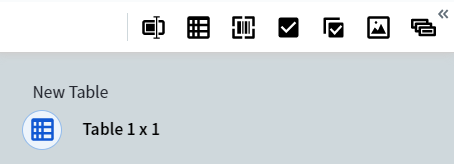
A Table field extracts rows of repeating values from a document, such as line items, invoice charges, or address blocks. Each column is a single repeating field, so all cells in a column share the same data type and properties.To add a table to your document, click Add Table in the toolbar. A 1×1 table appears in the data form.
A new 1×1 table in the data form
Open and close a table
To open a table, click the icon under its name in the data form, or click the table’s region on the document image. The icon of the open table is highlighted in blue inside a cyan circle.To close a table, do one of the following:
Click the icon under the table name.
Click a different field in the data form.
From a row or column dropdown menu, select Close Table.
From the table menu (icon in the upper-left corner of the table), select Close Table.
Press Ctrl+Alt+T.
Populate a table
Add a value to a cell
1
Select the cell
Click the cell in the table.
2
Mark the region
Mark a region on the document image. Vantage extracts the data from the region into the selected cell.
If you mark a second region immediately after, Vantage adds a new column at the end of the table and places the extracted data in the first cell of that column.
Auto-fill the rest of the table
1
Mark the top rows
Mark the top row, or several top rows, in the table.
2
Continue the table
Click the icon next to the last cell, or select Continue table from this row from the dropdown menu.
Vantage fills the remaining rows automatically.
Auto-fill processes up to 10 pages of table data at a time. For longer tables, repeat the command on the remaining rows.
Add rows or columns manually
Use the Create column and Create row buttons to add rows or columns. From a row or column dropdown menu, you can also insert a new row or column at a specific location, or delete one or more rows or columns. To delete every row at once, select Delete All Rows from the table menu.
Adding a row or column manually does not move the cursor. Select the new cell to start entering data.
Navigate between cells
Action
Key
Move to next cell
Tab
Move to previous cell
Shift+Tab
Move in any direction
Arrow keys
Set table properties
Table cells have the same general properties and data-type-specific properties as regular text fields, except Allow multiple items. All cells in a column share the same properties, because the column is a single repeating field.To set column properties, select Column Settings from the column dropdown, or select a cell in the column and press Alt+Enter. The field settings dialog for the column opens.
Column width
The default column width is 2 characters. To resize a column, drag the separator between column headings. Column widths you set are preserved in manual review.
Rename a column or table
To rename a column, click the column name, or select Rename Column from the column dropdown. To rename the table, click the table name in the data form.